Resize Images: The Easy Way
Wondering How to Make Pictures Bigger?
Making pictures larger is pretty straightforward, especially if you use the image resizing above. But keep in mind that making an image bigger that’s low resolution will lose a lot of quality for you. I’ll explain this further below, but a picture will typically look more pixelated or grainy if you stretch it out by scaling.
If you want to make an image larger:
- Upload your target image
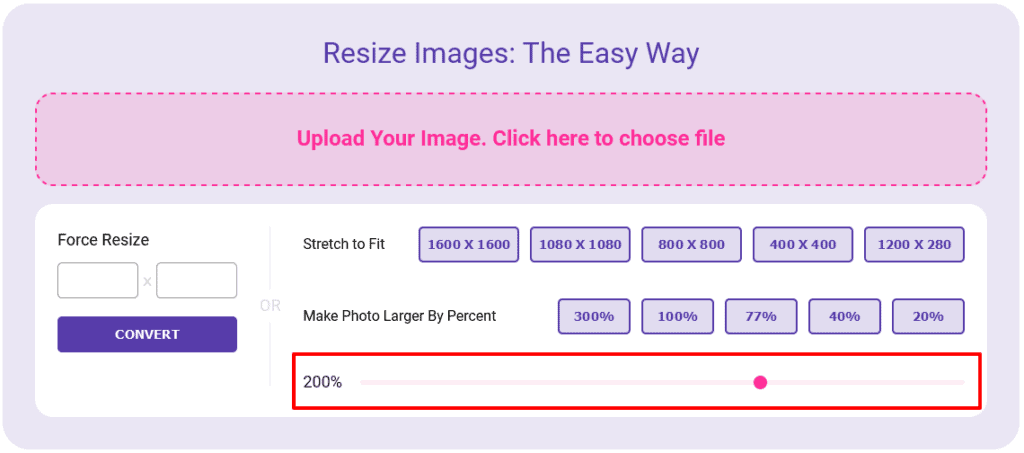
- Change the scale % to something over a hundred. For example if you want a picture to be double the size then set it to 200%. For example if you have an image that is 800 x 800 pixels, and you scale it to 200% then it will come out as 1600 x 1600. Keep in mind it will lose quality as a result.
Sample Image 1:

Same image twice the size:

Wondering How to Make Pictures Wider, That's Easy too.
Making pictures wider is also similar to making an image bigger. In this case you want to control an image’s dimensions specifically by one dimension.
To do this, you can either select one of the pre-defined fits on the right, or select the exact width you want and set the height according to the ratio of the image. By manipulating the force resize numbers you can see if the image is maintaining the appropriate ratio.

Trying to shrink pictures online? Not a Problem
Shrinking a photo relies on the same type of scaling used above, except that in this case you’re trying to lower the percentages of the size. Again similar to the above the image will get sized down by a specific ratio. So if it’s 1600 x 1600 scaling by 50% would get you to 800 x 800. (1600 * .5)

Tips for Getting the Best Results When Resizing Images or Making Them Larger:
Altering the sizes of images is a tricky business. Although I won’t get too far into the math behind it, or how specific screen sizes can affect things, it is important to realize that any image you see is a bunch of code on a computer, that gets translated by whatever screen you see it on. So however similar a photo will be to the real thing, it’ll never look exactly the same, and similarly, as you alter the sizing of an image things will change slightly. Check out the image resolutions below. You might be familiar with terms like 720P, 1080P, and 4K. But each of those resolutions is actually made up many tiny individual dots. If you look at the below image you’ll see what I mean.

Now all three screens can display the same image, but the one above cannot go into as much detail as a 4K image could. At the same time an image that is tiny, say 1600 x 1600 pixels, that gets stretched out onto a 4k screen will look terrible. But it likely won’t look as bad at 720P even though that screen is more grainy.
The next thing that matters is Points Per Inch, PPI, or Dots Per Inch, DPI. Now PPI typically refers to printing. But in a similar manner to the screens above, a lower PPI will result in a grainier image. If you step back and look at the above Ks from across the room you probably won’t notice much difference. Much of that has to do with the fact that your brain will adjust the image, but there is also a maximum amount of resolution your brain can perceive
The standard DPI for the web is 72 DPI. (So a screen that was 720 pixels wide back when there were CRT tubes would have been 10 inches wide. Now for print the standard PPI is 300. (Anything less than that will feel grainy to you since you’re used to better). Interestingly many mobile devices have gone base this level of DPI.

So even though a screen may have more pixels it may not look sharper.
Imagine in the below image that you’re trying to display that picture, in a “higher resolution” screen there are just more pixels for display, but while total pixels matter so do the density of them. Because at a higher density even a smaller screen in terms of total pixels will look sharper.

All of the above is important for image editing because the program above will have to do some sampling to determine what pixels to choose and keep when going from small to big, big to small, or anywhere in between. So keep in mind that quality might be affected some. Whatever your need this tool works for creating all common image sizes including 1600 x 1600 pixels, 400 x 400 pixels, 195 x 195 pixels, 800 x 800 pixels, and 200 x 200 px images.
Facebook image ad sizes:
If you need to export facebook image ads the following dimensions are the sizes:
Facebook Image Ad Sizes:
If you need to export Facebook image ads the following dimensions are the sizes:
- Facebook Feed Image – Recommended resolution: at least 1,200 x 628 Pixels
- Facebook Carousel Image – Recommended resolution: at least 1,080 x 1,080 Pixels
- Facebook Cover Photo – Recommended resolution at 820px wide by 312px high Pixels
- Facebook Profile Photo – Recommended resolution at 180px wide by 180px high Pixels
Google Image Ad Sizes:
If you need to export Google image ads the following dimensions are the sizes:
- 300 x 250 pixels also known as a “medium rectangle”.
- 336 x 280 also known as a “large rectangle”.
- 728 x 90 pixels also known as a “leaderboard”.
- 300 x 600 pixels Sometimes referred to as a “half page.”
- 320 x 100 pixels also known as the “large mobile banner.”
Reddit Image Ad Sizes:
If you need to export Reddit image ads the following dimensions are the sizes:
- Sponsored Posts (Reddit native unit) Sponsored Posts are rotating ad units in a light blue “Sponsored Posts” window at the top of Reddit pages. Sponsored Posts include a 70×70 thumbnail image
- Mobile Mobile Web (Reddit.com) supports a 1200×628 card view image, 100 characters of text, and a click-through URL. These are available for both self-serve and managed ads.
- Mobile The official Reddit app supports a native ad unit, requiring a 1200×628 card view image, a 140×140 compact view image
- Banners: We offer a 300×250 standard unit and a 300×600 unit which run on the right-hand rail of reddit.com. These units can be either site served or third-party served